




- Published on: 2026-10-12 08:57:00
How to Customise Your MT4 Workspace for Maximum Efficiency
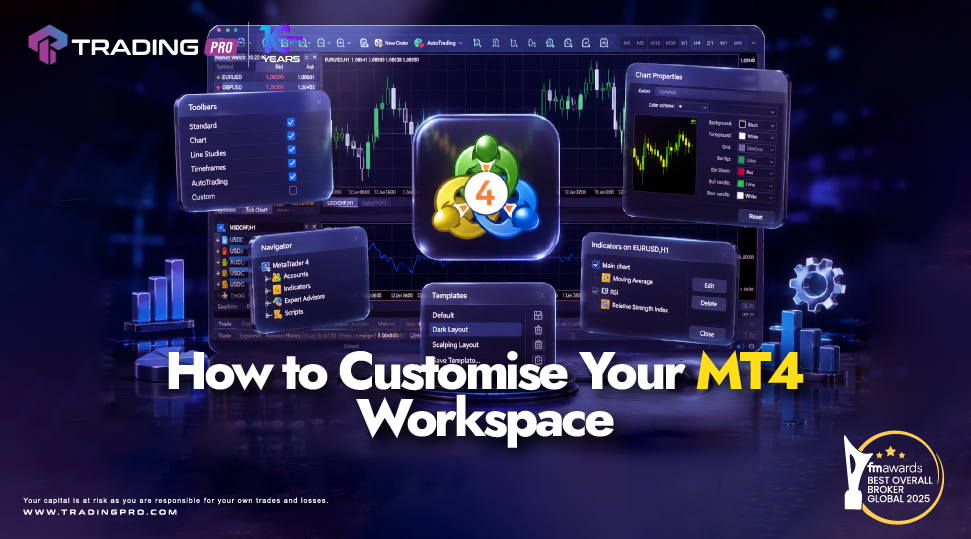
When opening MetaTrader 4 for the first time, the default interface can feel cluttered and slow. With dark backgrounds, multiple chart windows, and dense pricing lists running background calculations, finding key market data quickly takes practice. Learning how to customize mt4 is an essential step toward transforming a complex trading platform into a streamlined, high-performance workspace.
A well-organized workspace reduces visual fatigue, speeds up technical analysis, eliminates platform lag, and helps you execute trades without distraction. In this comprehensive guide, you will learn how to personalize your chart properties, optimize hardware and network connections, utilize VPS hosting, and monitor platform performance using TradingPRO.
1. Creating Cleaner, Faster Charts
The price chart is the central visual tool of your terminal. Customizing its visual layout while limiting background calculation loads makes analyzing price action clearer and significantly faster.
Personalizing Color Schemes and Visual Elements
To adjust the visual layout of your price chart, right-click anywhere on the chart canvas and select Properties (or press F8).
Inside the Colors tab, you can choose pre-built themes like "Black on White" or customize individual chart properties:
- Background & Foreground: Change the main chart color and modify text readability for grid coordinates.
- Bull and Bear Candles: Choose distinct colors for rising candles (e.g., green) and falling candles (e.g., red) to spot trend direction instantly.
- Grid Lines: Hide background gridlines to remove unnecessary visual noise by pressing Ctrl + G.
Streamlining Indicators and Chart Bar Limits
Running dozens of technical indicators forces MT4 to recalculate formulas on every price tick, causing platform freezes during high volatility.
- Keep charts lightweight by applying only essential technical indicators (such as Moving Averages, RSI, or trendlines).
- Lower historical data rendering by navigating to Tools > Options > Charts. Reduce the Max bars in chart and Max bars in history numbers (e.g., setting them to 5,000). Lowering bar limits frees up vital
- RAM and speeds up chart redraw times.
Learning these configurations gives you full command over how to customize mt4 chart layouts for clean, rapid visual analysis.
2. Setting Up the Market Watch Window
The Market Watch window (toggle on or off using Ctrl + M) streams live bid and ask quotes for currency pairs and assets. Customizing this list prevents information overload and lowers system bandwidth consumption.
- Hide Unused Symbols: Right-click inside Market Watch and select Hide All. This removes quotes for assets you do not actively trade, drastically cutting CPU usage.
- Add Favorite Assets: Right-click and choose Symbols (or press Ctrl + U). Double-click specific forex pairs, gold, or indices to add them back to your clean list.
- Drag-and-Drop Prioritization: Rearrange assets by dragging your primary instruments to the top of the list for instant monitoring.
- Enable Real-Time Spreads: Right-click inside the symbol window and tick Spread to display exact execution costs next to every price quote.
3. Organizing Workspaces with Shortcuts, Templates, and Profiles
Managing multiple chart layouts requires clean spatial management and quick keyboard controls.
Reusable Chart Templates and Profiles
Rather than recreating custom indicator setups for every new asset, rely on built-in saving tools:
- Save Chart Templates: Right-click a finished chart, select Template > Save Template, and assign a name. To make a design load automatically on every new chart, name the file default.tpl.
- Save Global Profiles: Save your complete multi-chart workspace layout via File > Profiles > Save As. Profiles allow you to switch instantly between different workspace configurations (such as a "Major FX" profile or a "Commodities" profile).
Essential MT4 Shortcut Commands
Using system hotkeys keeps your workspace organized without manually clicking through menus:
- Ctrl + T: Toggle the Terminal Window (trade status, account history, alerts).
- Ctrl + N: Open or hide the Navigator Window (accounts, indicators, Expert Advisors).
- Ctrl + M: Show or hide the Market Watch panel.
- F9: Launch the New Order window for instant trade execution.
- Alt + 1 / Alt + 2 / Alt + 3: Instantly switch between Bar charts, Candlesticks, and Line charts.
Mastering shortcuts and saved profiles is a core part of learning how to customize mt4 platform screen space for fast decision-making.
4. Improving Network Connection for Smoother Execution
A lag-free visual setup must be matched by a fast, stable network link to your broker's servers.
- Use Ethernet Connections: Wireless connections are susceptible to packet loss and latency spikes. A wired LAN cable provides stable, uninterrupted data flow.
- Select the Fastest Access Server: Click the connection status icon in the bottom right corner of your MT4 window to view server ping times. Select the access server offering the lowest ping time (measured in milliseconds).
- Disable Background Data Feeds: Go to Tools > Options > Server and untick Enable news. Turning off secondary news updates stops unnecessary background bandwidth usage.
- Turn Off Sound Alerts: Navigate to Tools > Options > Events and uncheck Enable to prevent audio pop-ups from using system resources during high-volatility moves.
5. Utilizing VPS Hosting on the MT4 Platform
For traders running automated strategies (Expert Advisors) or requiring 24/7 terminal uptime, Virtual Private Server (VPS) hosting is an essential operational setup.
- Ultra-Low Latency: Hosting your MT4 platform on a VPS located in the same data center as your broker's execution server reduces trade latency to low single-digit milliseconds.
- Uninterrupted 24/7 Uptime: A VPS runs continuously, safeguarding trades against local power loss, Wi-Fi drops, or computer hardware crashes.
- Optimized Server Performance: Keep your VPS fast by closing unnecessary chart windows, removing unused indicators, and rebooting the virtual server periodically to clear RAM memory buildup.
6. Selecting Hardware to Boost MT4 Efficiency
While MT4 is an efficient application, proper computer hardware ensures smooth multi-monitor charting and instant indicator processing:
- Processor (CPU): Prioritize high single-core clock speeds (3.0 GHz or higher) over multiple cores, as MT4 handles real-time chart updates on single processing threads.
- Memory (RAM): 8 GB of RAM handles standard trading, but 16 GB is recommended when running multiple MT4 terminals, custom indicators, or web browsers simultaneously.
- Solid State Storage (SSD): Installing MT4 on an NVMe SSD ensures fast software launching, quick historical data fetching, and swift template loading.
- Dual Monitor Display: Expanding screen real estate across two monitors lets you keep live charts on one screen while monitoring Market Watch, terminal trades, and news feeds on the second.
7. Broker Infrastructure and Execution Quality
Your custom platform settings work hand in hand with your broker's underlying server architecture:
- Institutional Liquidity Routing: Reliable brokers direct order flow to top-tier liquidity providers, ensuring minimal order slippage during news releases.
- Robust Server Uptime: Stable server infrastructure prevents unexpected disconnections during peak trading hours.
Pairing a lightweight local setup with reliable broker processing gives you an ideal trading environment.
8. Performance Tracking and Ongoing Platform Maintenance
Maintaining a high-speed workspace requires routine housekeeping:
- Monitor System Usage: Open Windows Task Manager (or Mac Activity Monitor) to ensure CPU and RAM usage remain low while MT4 runs.
- Clear Platform Logs: Access File > Open Data Folder and clean out old files inside the /logs and /tester/logs folders. Removing old text logs frees up hard drive space and speeds up application startup times.
- Audit Custom Indicators: If MT4 freezes, a poorly coded custom indicator is often the cause. Remove custom tools one by one to identify and delete resource-heavy scripts.
Why Choose TradingPRO for Your Custom MT4 Setup?
Having an optimized, ultra-fast MT4 workspace gives you a real analytical advantage, but pairing that setup with a top-tier broker is what guarantees trade performance. TradingPRO offers a complete trading infrastructure built specifically for MT4 users.
Here is why TradingPRO is the recommended choice for your trading journey:
- Full MT4 Workspace Support: Enjoy seamless integration for custom chart templates, profiles, custom indicators, and Expert Advisors across desktop and mobile devices.
- Low-Latency Execution: Connect directly to high-speed trade servers engineered for fast execution speeds and minimal price slippage.
- Beginner-Friendly Infrastructure: Take advantage of competitive spreads, transparent fee structures, and flexible account choices suited for beginner traders.
- Dedicated Support: Access technical support teams available to guide you through platform installation, server configuration, and workspace optimization.
Frequently Asked Questions
How do I back up my customized templates and profiles?
Open MT4 and click File > Open Data Folder. Copy the templates folder and the profiles folder to an external drive or cloud storage. You can paste these folders into any new MT4 installation to restore your complete custom layout instantly.
Why does MT4 lag when I open multiple chart windows?
Each open chart updates price ticks, draws graphics, and runs indicator calculations in real time. Having dozens of open charts running simultaneously drains system RAM and CPU memory. Close inactive charts or lower the "Max bars in chart" setting to resolve lag.
Is customizing the MT4 platform free on TradingPRO?
Yes. All built-in workspace customization features, shortcuts, indicator tools, template saving, and profile configurations are 100% free when using MetaTrader 4 with a TradingPRO trading account.
Conclusion: Build Your Custom Workspace Today
Learning how to customize mt4 gives you the power to strip away unnecessary clutter, speed up platform execution, optimize system resources, and focus entirely on profitable market opportunities. By refining chart properties, organizing Market Watch instruments, utilizing fast hardware or VPS hosting, and conducting regular terminal maintenance, you build a high-performance trading hub tailored to your strategy.
Ready to trade on a fast, custom workspace? Visit TradingPRO today to create your account, launch MetaTrader 4, and experience trading on an optimized platform.
For a complete visual walkthrough on applying templates, modifying chart colors, and setting up custom indicators step-by-step, watch this MetaTrader 4 Chart Customization Video Guide.
This video is directly relevant as it provides visual, step-by-step instructions on navigating MT4 options, clearing RAM memory, and optimizing platform performance.


