




- Published on: 2026-10-13 10:30:00
How to Place a Market Order on MT5
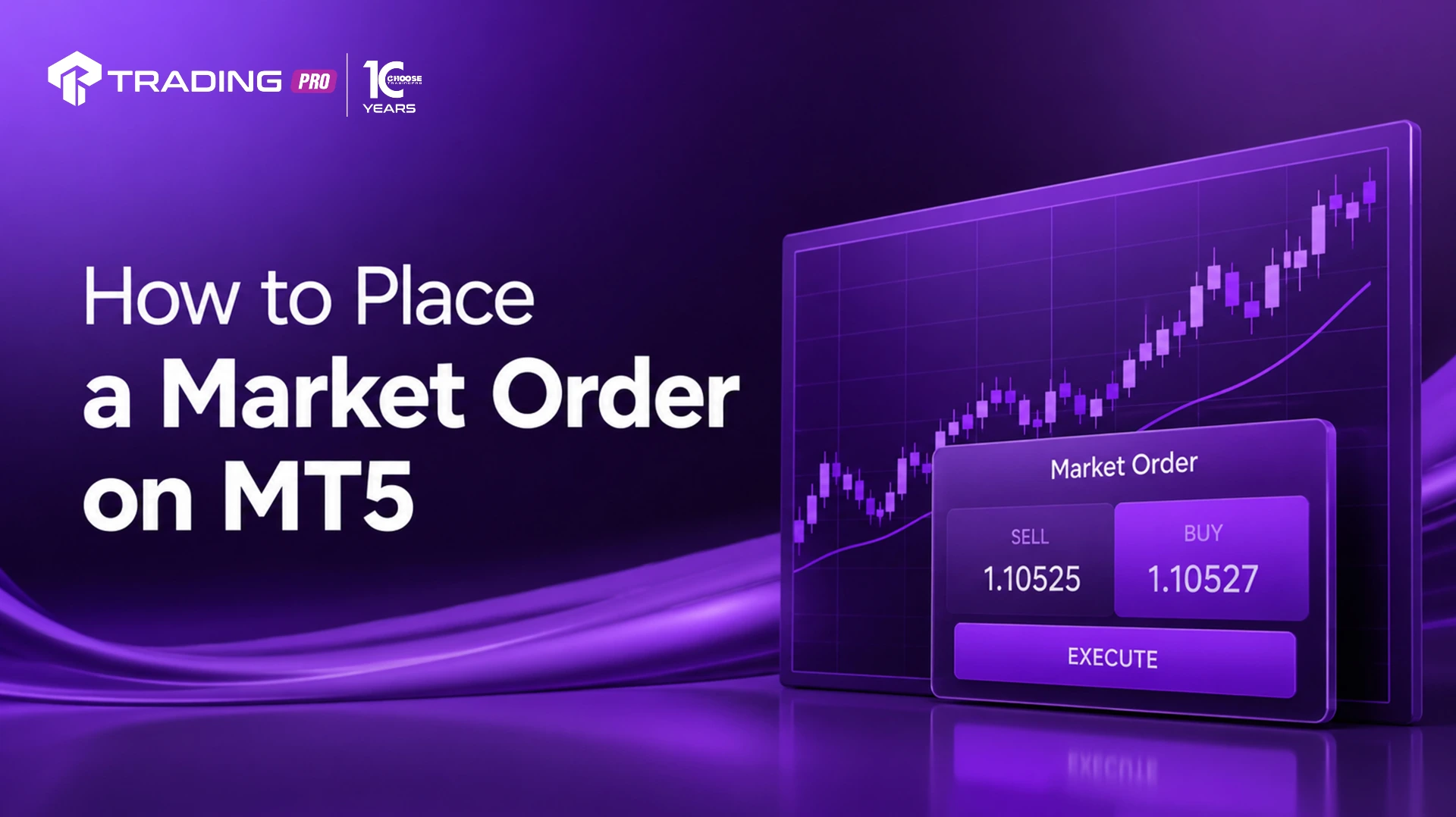
A market order is the most direct way to enter a trade on MetaTrader 5 (MT5). It executes immediately at the current available price, making it the go-to order type for traders who want to act on market conditions in real time rather than waiting for a specific price level to be reached. Whether you are trading forex, indices, commodities, or shares, understanding how to place a market order correctly is one of the first practical skills every MT5 user needs.
This guide walks through exactly how to place a market order on MT5, what each field in the order window means, and the common mistakes to avoid along the way.
What Is a Market Order?
A market order instructs your broker to buy or sell an instrument immediately at the best available price. Unlike pending orders, which wait for the market to reach a specific level, a market order is executed the moment you click "Buy" or "Sell." This makes it ideal for traders reacting to breaking news, momentum shifts, or confirmed technical setups where timing matters more than price precision.
Because execution happens instantly, the price you receive may differ slightly from the price you saw just before clicking, particularly during high volatility. This difference is known as slippage, and it's worth understanding before you place your first order.
Step-by-Step: Placing a Market Order on MT5
Step 1: Open the Order Window
There are three common ways to open the order window in MT5:
- Double-click the instrument in the Market Watch window.
- Right-click the instrument in Market Watch and select New Order.
- Press F9 on your keyboard while a chart of the desired instrument is active.
Any of these methods will bring up the order panel, where you'll configure the details of your trade.
Step 2: Select the Correct Symbol
At the top of the order window, confirm the Symbol field displays the instrument you intend to trade. If it's incorrect, use the dropdown menu to search for and select the correct one. This step matters more than it seems, since it's easy to place an order on the wrong instrument if you have several charts open at once.
Step 3: Set Your Volume (Lot Size)
The Volume field determines the size of your position, measured in lots. A standard lot equals 100,000 units of the base currency, though most brokers, including TradingPRO, also support mini lots (0.10) and micro lots (0.01) for more flexible position sizing.
When setting your volume, consider:
- Your account balance and available margin
- Your risk tolerance per trade, commonly expressed as a percentage of account equity
- The instrument's volatility, since higher volatility instruments often warrant smaller position sizes
Step 4: Choose "Market Execution"
In the order type dropdown, ensure Market Execution is selected. This confirms the order will be filled immediately at the current market price rather than being placed as a pending order.
Step 5: Set Optional Stop Loss and Take Profit (Recommended)
While not mandatory, adding a stop loss and take profit at the time of order placement is strongly recommended for disciplined risk management. Both fields appear in the order window and can be set using either a specific price or a distance in points from the current price.
If you prefer to add these afterward, you can also modify an open position at any time from the Terminal window's Trade tab.
Step 6: Review the Price and Spread
Before executing, check the displayed Bid and Ask prices. The difference between them is your spread, which represents part of the cost of entering the trade. Wider spreads typically occur during low liquidity periods, such as major news releases or session transitions.
Step 7: Execute the Order
Once everything is confirmed, click Buy by Market or Sell by Market, depending on your intended direction. The order executes instantly, and your new position will appear in the Trade tab of the Terminal window at the bottom of the platform.
Managing Your Position After Execution
Once your market order is filled, you can monitor and manage it directly from the Trade tab:
- Modify: Right-click the open position and select "Modify or Delete Order" to adjust your stop loss or take profit.
- Partial close: Right-click and choose "Close Partially" if you want to reduce your exposure without closing the entire position.
- Close: Select "Close Order" to exit the position entirely at the current market price.
Common Mistakes When Placing Market Orders
- Trading the wrong lot size: Entering "1.00" instead of "0.10" by mistake can multiply your risk exposure tenfold. Always double-check the volume field before executing.
- Ignoring the spread: Entering trades during widened spreads, particularly around high-impact news events, can significantly affect your entry price.
- Skipping stop loss placement: Leaving a position unprotected exposes your account to unnecessary risk if the market moves sharply against you.
- Confusing symbol variants: Some brokers list multiple versions of the same underlying asset (for example, different index or commodity contracts). Always confirm you've selected the intended symbol.
- Overtrading during high volatility: Rapid price movement can tempt traders into entering multiple market orders in quick succession. Stick to your trading plan rather than reacting emotionally.
One-Click Trading for Faster Execution
If you frequently place market orders and want to skip the order window entirely, MT5 offers a one-click trading feature. This allows you to buy or sell directly from the chart with a single click, using preset volume and risk settings. This feature is covered in detail in our companion article on using one-click trading in MT5.
Final Thoughts
Placing a market order on MT5 is a simple process once you understand each field in the order window: symbol, volume, execution type, and optional stop loss and take profit levels. Mastering this fundamental skill sets the foundation for more advanced order management, including pending orders and automated trading strategies.
Log in to your TradingPRO MT5 account and practice placing a market order on a demo account first if you're still building confidence. Once the process feels natural, you'll be able to react to market opportunities quickly and with precision.


